The building blocks of every page
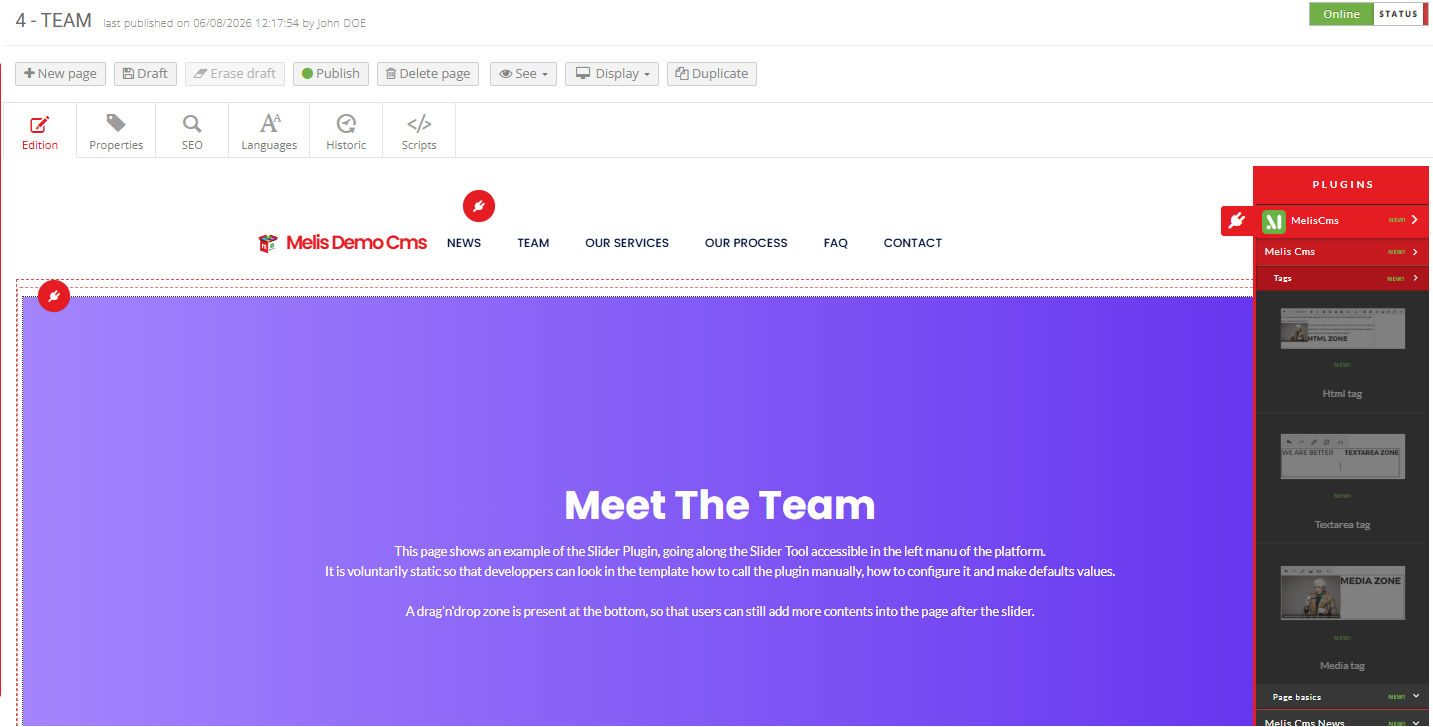
Pages are built by dragging content blocks into template zones. A standard set ships with the CMS, and companion modules add more — sliders, categories, tags, comments, contact forms — available as soon as they’re loaded on a site.
Part of
Type
Added in
Enabled by
Base class
Blocks
Overview
Standard blocks, plus companions
The CMS ships with the everyday blocks: text/HTML, media, menu, breadcrumb, list-from-folder, and the GDPR banner. You drag them onto a page and configure each one.
Companion modules add more powerful blocks — Slider, Categories, Tags, Comments, Contact form (Prospects) — which appear in the plugins menu once their module is loaded on the site.
Key features
A growing palette of blocks
Standard blocks built in, more added by companion modules — all dragged onto pages the same way.
Standard blocks
Text/HTML, media, menu, breadcrumb, list-from-folder, GDPR banner — built in.
Slider
Attach a slideshow to a page or an article (with MelisCmsSlider).
Categories & tags
File and tag content for richer navigation and filtering.
Contact form (Prospects)
Collect leads with a drop-in contact form block.
Comments
Let visitors comment, with a back-office dashboard widget.
Loaded per site
Each block appears once its module is switched on in Module loading.
See it in action
From the menu to the page
Editors pick a block from the plugins menu and drop it straight into a zone.
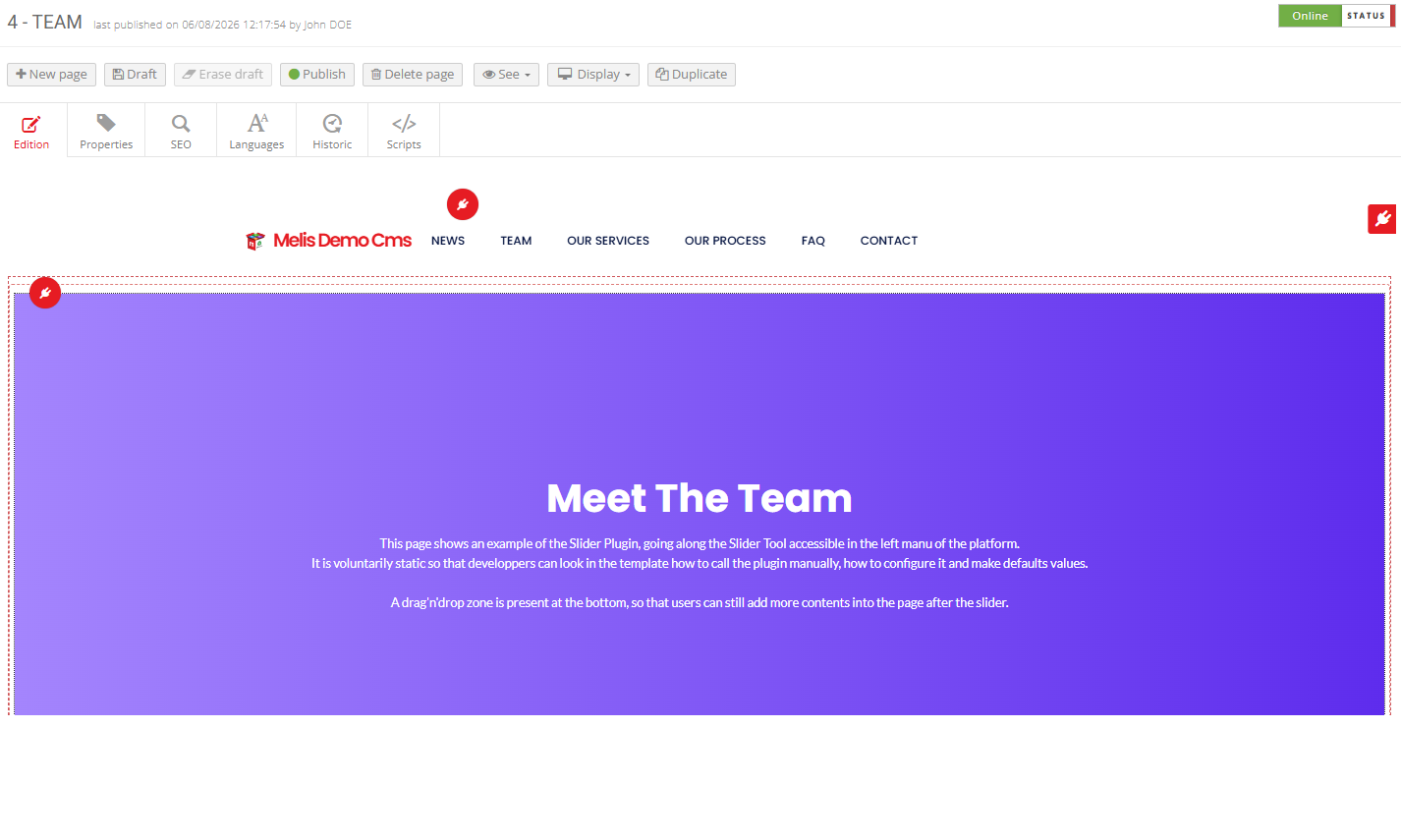
Drag a block, configure it, done
Open the plugins menu, drop a block into a zone, then set its options — source, count, template — in its settings modal.
- Drag a block into a template zone
- Configure it in its settings
- Load the module that provides it
For developers
How it's wired
One base class
Every block extends MelisEngine’s MelisTemplatingPlugin: front() renders live, back() renders the edit container.
Surfaced in the editor
Loaded blocks appear in the page editor’s plugins menu under the MelisCms section.
Toggled per site
Availability is controlled by the site’s Module loading.
// A content block is a templating plugin:
class MyBlockPlugin extends MelisTemplatingPlugin {
    public function front() { /* return view vars (live site) */ }
    public function back()  { /* render the BO edit container */ }
}
// It appears in the editor once its module is loaded on the site.
Part of Melis CMS
Explore the rest of the toolbox
Content blocks are one piece of the CMS — here’s what surrounds them.
Build pages from ready-made blocks
See the page editor and its blocks in a live back-office.
